Adding checks and marks
Add checkmarks and X marks to a PDF to tick checkboxes and answer yes/no or multiple-choice questions on any form.
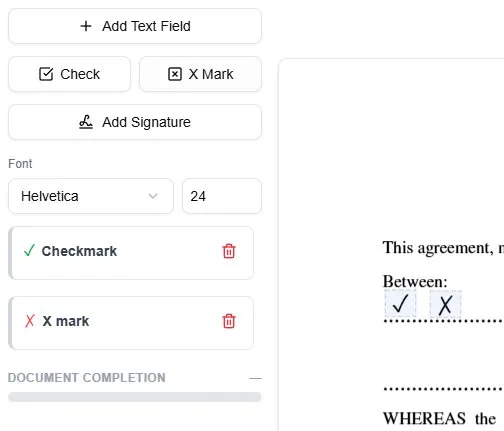
Checkmarks (✓) and X marks (✗) are for the boxes a form has already printed for you — ticking a checkbox, choosing yes or no, agreeing to a clause, or picking one option from a list. Unlike text fields, these are symbols you drop onto the page rather than characters you type.
Check or X — which to use
Use a check to confirm or select an option, and an X mark to indicate “no”, to opt out, or to cross a box out. Many forms accept either, so match whatever the instructions ask for.
Add a mark
- Click the Check or X Mark button in the left toolbar, then click the box on the document you want to mark.
- Or right-click the page and choose Check or X Mark from the menu.
After it’s placed, drag the mark to center it on the box and pull its edges to resize it so it sits neatly inside — a mark that overflows the checkbox reads as messy on the finished form.
Cancel or remove a mark
Press ESC while placing to cancel. To remove a mark, select it and press DEL, click the trash icon in the left sidebar, or right-click it and choose Delete field.
Common uses
Checks and X marks handle the tick-box parts of applications, consent and waiver forms, surveys, and multiple-choice questionnaires. For the written answers on the same form — names, dates, and other details — add text fields alongside them.
Ready to start filling your PDFs?
Fill out PDF documents like a pro in minutes - no premium account needed.