
Save your project
Learn how to save a PDF project in AnyPDFfiller so you can come back later and finish filling, editing, or signing exactly where you left off.
Your Premium account allows you to save your progress on the filled out documents by simply pressing a button in the top bar.

All you need to do is to type in the project name and press on the Save Project button. The asterisk (*) symbol tells you whether or not you have any unsaved changes. After saving the project successfully, the asterisk symbol should disappear, marking your project up-to-date and secured.
Accessing your saved projects
If you would like to continue editing a PDF file from your previous session, you need to go to the PDF Filler page
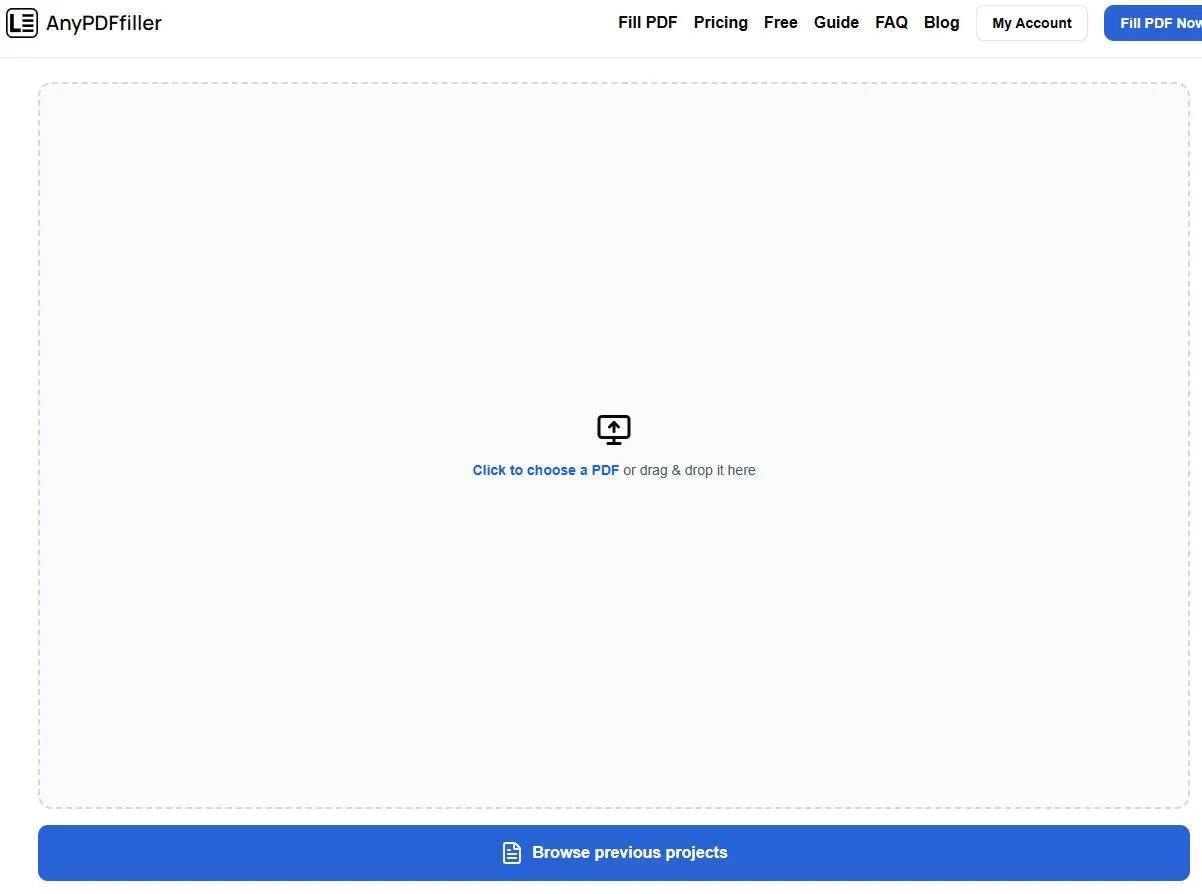
Under the upload file area there should be a button Browse previous projects which will take you to your projects browser screen.
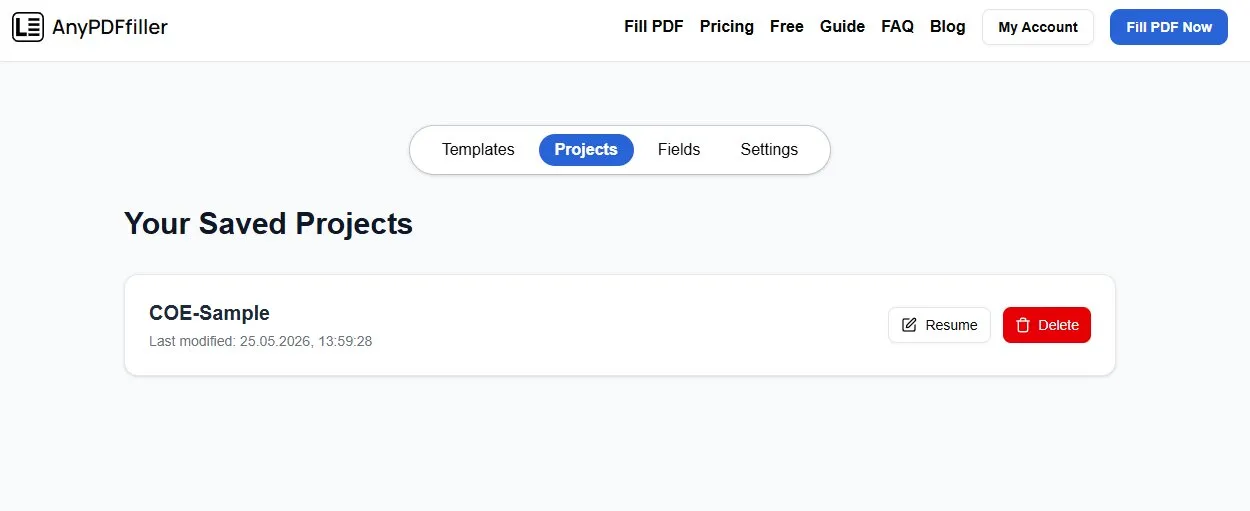
This screen allows you to quickly resume your work on your previously saved projects. Click Resume to load the project and PDF file into the PDF Filler page. By pressing Delete you can remove the unnecessary projects from your account. For Premium users there are no limits as to how many projects you can have saved.
When saving a project is worth it
Not every form needs saving. It earns its keep on the documents you cannot finish in one sitting — a long USCIS application waiting on a document you have not received, a lease you need a second signature on, an application where you are still chasing an employer’s details. Save it, close the tab, and pick it up later with every field exactly as you left it.
The asterisk is the thing to watch. If it is showing, the version in your account is behind what is on screen. Press Save Project before you close the tab and it disappears.
Projects vs. templates — which one you want
These two features are easy to confuse, and they solve different problems:
- A project stores the document and the values you typed. Use it to pause and resume one specific form.
- A template stores the document setup without the values. Use it when you fill the same blank form repeatedly for different people — an employer issuing the same onboarding form to each new hire, or a landlord sending the same application to every applicant.
Rule of thumb: finishing one document later → project. Reusing one document many times → template.
Frequently asked questions
How many projects can I save?
Premium accounts have no limit on saved projects.
Does saving a project keep my PDF too?
Yes — the file and your entries are stored together, so resuming loads the document with everything already in place.
What does the asterisk mean?
It marks unsaved changes. Once you press Save Project successfully, it disappears and your saved copy matches the screen.
Can I delete a project I no longer need?
Yes — press Delete in the projects browser to remove it from your account.
Ready to start filling your PDFs?
Fill out PDF documents like a pro in minutes - no premium account needed.