How to Edit a PDF on Mac for Free (No Software Needed)
Learn how to edit a PDF on a Mac for free in Safari or Chrome. Add text, checkmarks, and a signature, then download — no Adobe and nothing to install.

You have a PDF open on your Mac, and you need to change something.
Maybe you need to add your details to a form, tick a few boxes, or sign on the last page.
The built-in Preview app can mark up a PDF, but it gets fiddly fast with form fields, and buying Adobe Acrobat just to edit the occasional file is overkill.
There is a simpler way. This guide shows you how to edit a PDF on a Mac for free, right in Safari or Chrome, with nothing to install.
Why you do not need software to edit a PDF on a Mac
Most PDF edits people actually need are small: add some text, tick a checkbox, place a signature, fix a typo on a form. You do not need a heavy desktop program for that.
An online editor runs entirely in your browser, so it works the same on any Mac — MacBook Air, MacBook Pro, iMac, or Mac mini — and on any macOS version. There is no download, no license, and no setup.
If you have been comparing this to a paid app, our Adobe Acrobat alternative guide covers the trade-offs in detail.
How to edit a PDF on a Mac: step by step
This works in Safari, Chrome, or any modern browser on your Mac.
Step 1 — Open the editor in your browser
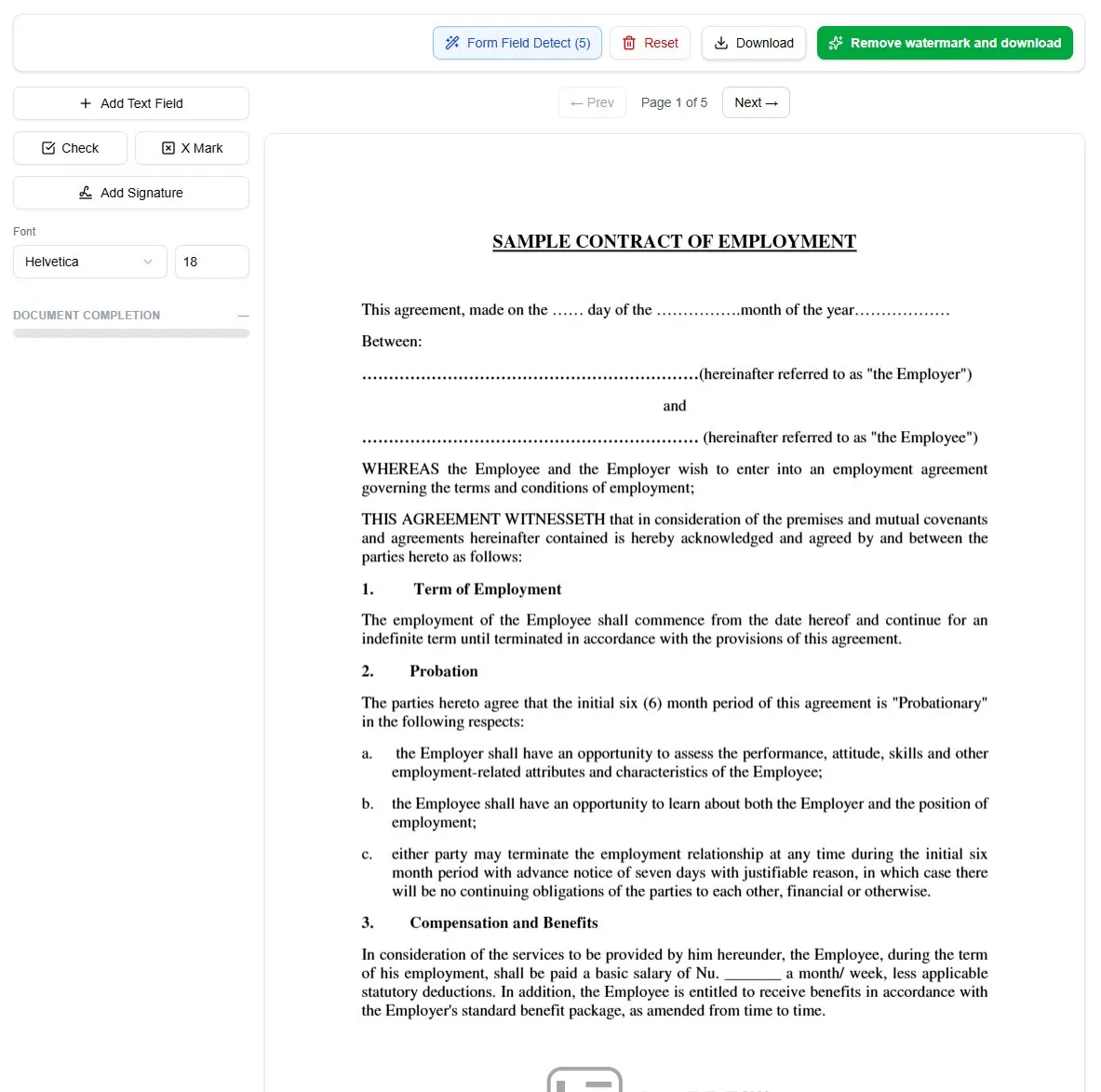
Go to the filler in Safari or Chrome and upload your PDF. The document opens on screen, ready to edit. Nothing installs and you do not need an account to begin.
Step 2 — Add or change text
Click Add Text Field, click the spot on the page where the text goes, then double-click the box that appears and type. This works the same whether the PDF is a real form or a flat scan, because your text sits on top of the page either way. You control the font size, so the result lines up cleanly with the original layout.
Step 3 — Add checkmarks, X marks, and dates
Place a checkmark or an X on any box that needs one, and add dates where required. Drop each mark exactly where it belongs on the page.
Step 4 — Sign the document
Add your signature without leaving the browser. Click Add Signature, draw it with your trackpad or mouse, then click the page and position it on the signature line. For more detail, see our guide on how to sign a PDF.
Step 5 — Download the edited PDF
When the page looks right, download it. You get a clean, standard PDF with your changes merged in, ready to send or print.
Editing a PDF in Preview vs in your browser
Preview is fine for quick annotations, but it has limits that show up the moment you work with real forms.
- Preview struggles with flat and scanned forms, where there are no fields to click
- Lining up text on a printed line takes patience
- Signature handling is clunky once you move past the basics
A browser editor is built for exactly this. It shows you the page and lets you drop text and marks anywhere on it, flat or not, and it can run an AI field finder that reads the page and places boxes on the blanks for you. Everything is merged into the page on download, so the file looks the same for whoever receives it.
If your document is a scanned image rather than a true PDF form, our guide on how to fill a scanned PDF walks through that case.
Frequently asked questions
How do I edit a PDF on a Mac for free?
Open an online PDF editor in Safari or Chrome, upload your file, and add text, checkmarks, or a signature directly on the page. Download the finished PDF when you are done. It is free and there is nothing to install.
Can I edit a PDF on a Mac without Adobe?
Yes. You do not need Adobe Acrobat. A browser-based editor handles the common edits — text, marks, and signatures — without buying or installing any software.
Why can’t I edit a PDF in Preview?
Preview can annotate a PDF, but it has trouble with flat and scanned forms that have no clickable fields, and form filling can be awkward. A browser editor lets you place text and marks anywhere on the page, which solves both problems.
Does this work on any Mac?
Yes. Because the editor runs in the browser, it works on any Mac and any recent macOS version, as well as on iPhone and iPad — see how to edit a PDF on iPhone for the mobile walkthrough.
Will my edits stay in the file?
Yes. When you download, your text, marks, and signature are merged into the page, so they appear the same way in every PDF viewer.
Ready to edit your PDF on your Mac?
You now know how to edit a PDF on a Mac for free, from adding text and checkmarks to signing the last page — all in your browser, with no Adobe and nothing to install.
The fastest way to see it work is to try it on your own file.
Ready to start filling your PDFs?
Fill out PDF documents like a pro in minutes - no premium account needed.