
How to Edit a PDF on iPhone for Free (No App to Install)
Edit a PDF on your iPhone for free in Safari — add text, tick boxes, and sign, then download. No app, no Adobe, works on iPad too.
A PDF lands in your email, and you need to deal with it on your phone.
Maybe it is a form to fill in, a box to tick, or a page to sign — and you are nowhere near a computer.
The good news is you do not need to wait, and you do not need to install anything from the App Store. This guide shows you how to edit a PDF on your iPhone for free, right in Safari, and download the finished file to send straight back.
What “edit a PDF on iPhone” really means
For most people, editing a PDF on a phone means a handful of small, practical changes: typing your details into a form, ticking a checkbox, adding a date, or dropping a signature on the last page. You rarely need to rewrite the paragraphs a document already contains.
That is exactly the kind of work a browser-based editor handles well on an iPhone. It runs entirely in Safari, so there is no download, no account required to start, and no Adobe. You add your text and marks on top of the page, and they merge into the file when you download it.
If you need to rework a document’s original body text, that is a different, heavier job — but for filling, marking, and signing, your iPhone is enough.
How to edit a PDF on your iPhone: step by step
This works in Safari on any recent iPhone, and the same steps work on an iPad.
Step 1 — Open the PDF you received
Save the PDF from Mail, Messages, or a website to your Files app, or keep the attachment handy. You will upload it in the next step, straight from your phone.
Step 2 — Open the editor in Safari
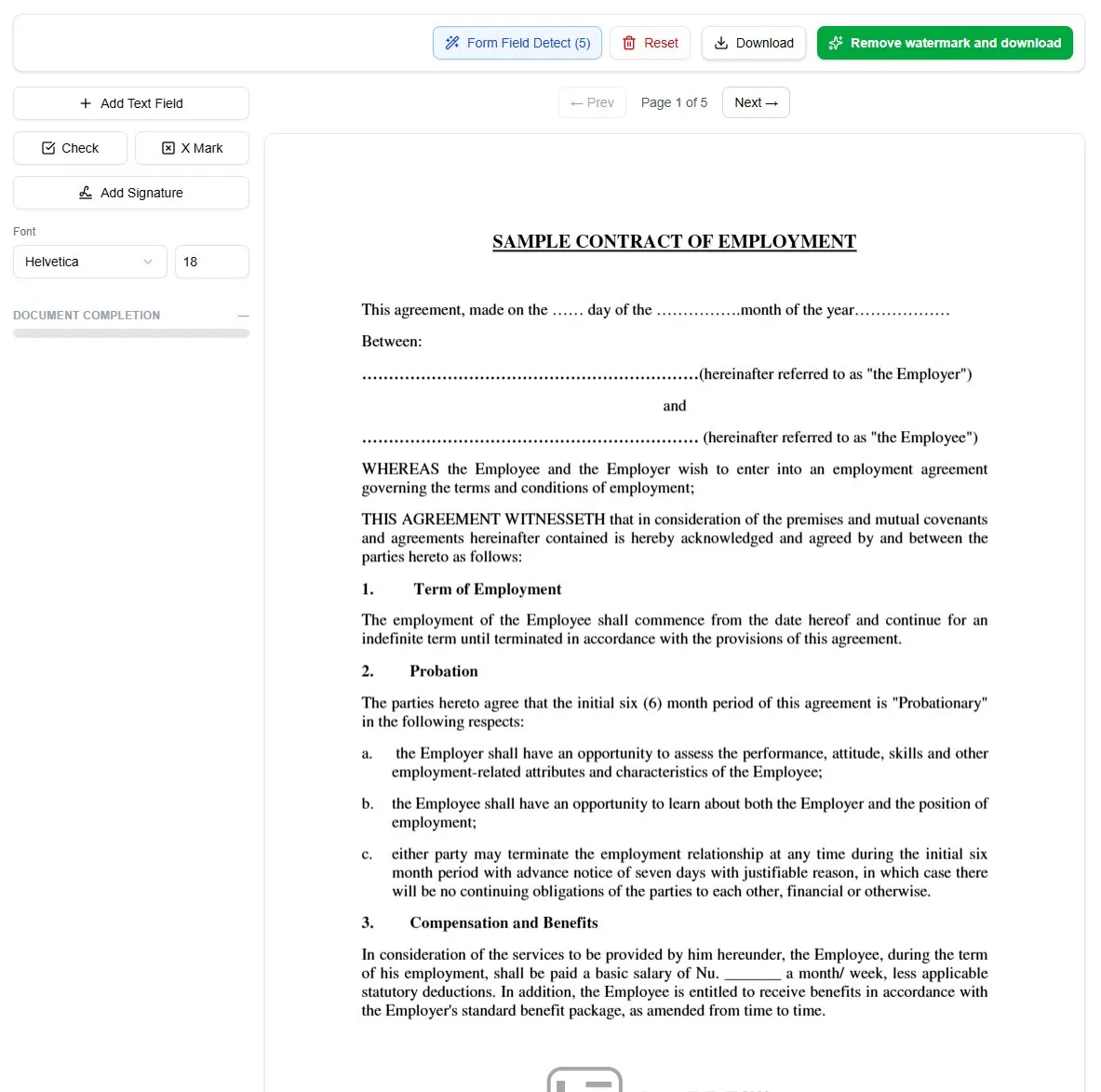
Go to the filler in Safari and tap to upload your PDF. Pick it from Files, iCloud Drive, or wherever you saved it. The document opens on screen, ready to work on. Nothing installs.
Step 3 — Add or type your text
If the PDF has interactive fields, tap one and type with your on-screen keyboard. If it is a flat or scanned page with no fields, tap anywhere to drop a text box, type, and drag it into position. You control the size so it sits neatly on the line.
Step 4 — Tick boxes, add marks and dates
Place a checkmark or an X on any box that needs one, and add a date where the form asks for it. Drag each mark exactly where it belongs — handy for consent forms, applications, and agreements.
Step 5 — Sign with your finger
Add your signature without leaving Safari. Draw it directly with your fingertip, which is the most natural way to sign on a touchscreen, or type it in a signature style. Place it on the signature line and resize it to fit. For more on signatures, see our guide on how to sign a PDF.
Step 6 — Download the edited PDF
When the page looks right, download the finished file to your iPhone. Your text, marks, and signature are merged into the page, so it looks the same for whoever opens it. From there you can attach it to a reply or upload it to a portal.
Editing a PDF with iOS Markup vs in your browser
Your iPhone already has a built-in Markup tool — the pen icon you see when you open a PDF in Files or Photos. It is fine for a quick scribble or a hand-drawn signature, but it shows its limits fast on real paperwork:
- Markup has no concept of form fields, so lining text up on a printed line is fiddly with a finger
- Typed text boxes are small and awkward to position precisely
- There is no clean way to tick structured checkboxes or handle a multi-field form
A browser editor is built for that job. It detects interactive fields automatically, lets you drop text and marks anywhere on flat or scanned pages, and flattens everything cleanly on download. If your document is a scanned image rather than a true PDF form, our guide on how to fill a scanned PDF covers that case.
Prefer to work on a laptop instead? The same tool runs on a Mac — see how to edit a PDF on Mac.
Does it work on iPad?
Yes. Because everything runs in the browser, the same steps work on an iPad in Safari, with the added room of a bigger screen. Drawing a signature with an Apple Pencil gives an especially clean result, and dragging text into place is easier with more space to work in.
Frequently asked questions
How do I edit a PDF on my iPhone for free?
Open an online PDF editor in Safari, upload your file from the Files app, and add text, checkmarks, or a signature directly on the page. Download the finished PDF when you are done. It is free and there is nothing to install from the App Store.
Can I edit a PDF on iPhone without an app?
Yes. A browser-based editor works entirely in Safari, so you do not need to download an app or buy Adobe. You upload the PDF, make your changes, and download it — all on your phone.
Can I use the built-in Markup tool instead?
You can for quick annotations, but iOS Markup has no real form-field support, so filling and aligning text on a structured form is awkward. A browser editor detects fields and lets you place text and marks precisely, which is better for forms and agreements.
How do I sign a PDF on my iPhone?
Open the PDF in the editor, choose to add a signature, and draw it with your finger. Drag it onto the signature line, resize it to fit, and download the signed file. No app or scanning is needed.
Does this work on an iPad too?
Yes. The editor runs in Safari on iPad exactly as it does on iPhone, and an Apple Pencil makes signing and precise placement even cleaner.
Ready to edit a PDF on your iPhone?
You now know how to edit a PDF on an iPhone for free — adding text, ticking boxes, and signing — all in Safari, with no app to install and no Adobe.
The fastest way to see it work is to open a document you actually need to deal with and try it.
Ready to start filling your PDFs?
Fill out PDF documents like a pro in minutes - no premium account needed.