How to Sign a PDF Online for Free (No Printing or Scanning)
Sign a PDF online for free. Draw your signature in the browser, place it on the line, and download — no printing, scanning, or software.
You need to sign a PDF.
Maybe it is a contract, an offer letter, a lease, or a consent form.
The old way is painful. Print the page, sign it with a pen, scan it back, and hope the scan is straight and readable.
You do not have to do any of that. This guide shows you how to sign a PDF online for free, right in your browser, with no printing and no scanning.
What it means to sign a PDF online
Signing a PDF online means adding your signature straight onto the file on screen, then downloading a finished copy. Nothing is printed and nothing is scanned.
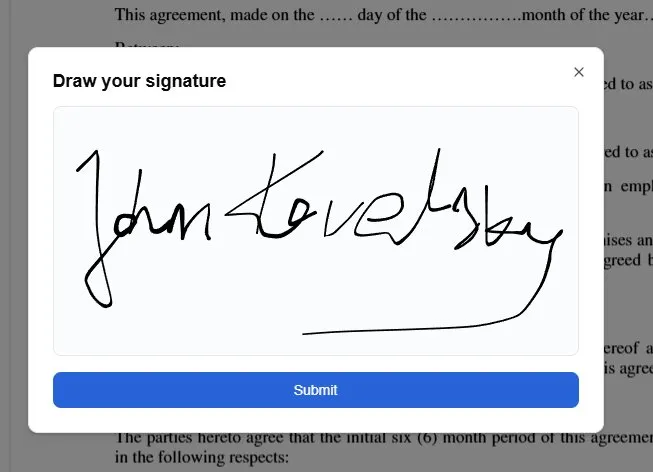
Here you create the signature by drawing it. A dialog opens with a blank box, and you sign in it with your mouse, your trackpad, or a finger on a touchscreen. There is no typed signature font and no option to upload an image of your handwriting.
However you sign, the result is the same: a clean signature sitting exactly where it belongs on the page, merged into the PDF so it looks the same in every viewer.
How to sign a PDF online: step by step
Here is the full process. It works in any modern browser, on a laptop, tablet, or phone.
Step 1 — Upload your PDF
Open the filler in your browser and upload the document you need to sign. There is nothing to install, and you do not need an account to get started.
Step 2 — Add your signature
Click Add Signature, or right-click the page and choose Signature. A box opens for you to sign in. Draw your signature with your mouse, trackpad, or finger, then click Submit. A finger on a phone or tablet gives the most natural line; on a laptop, draw a little slower than you would on paper.
Step 3 — Place it on the signature line
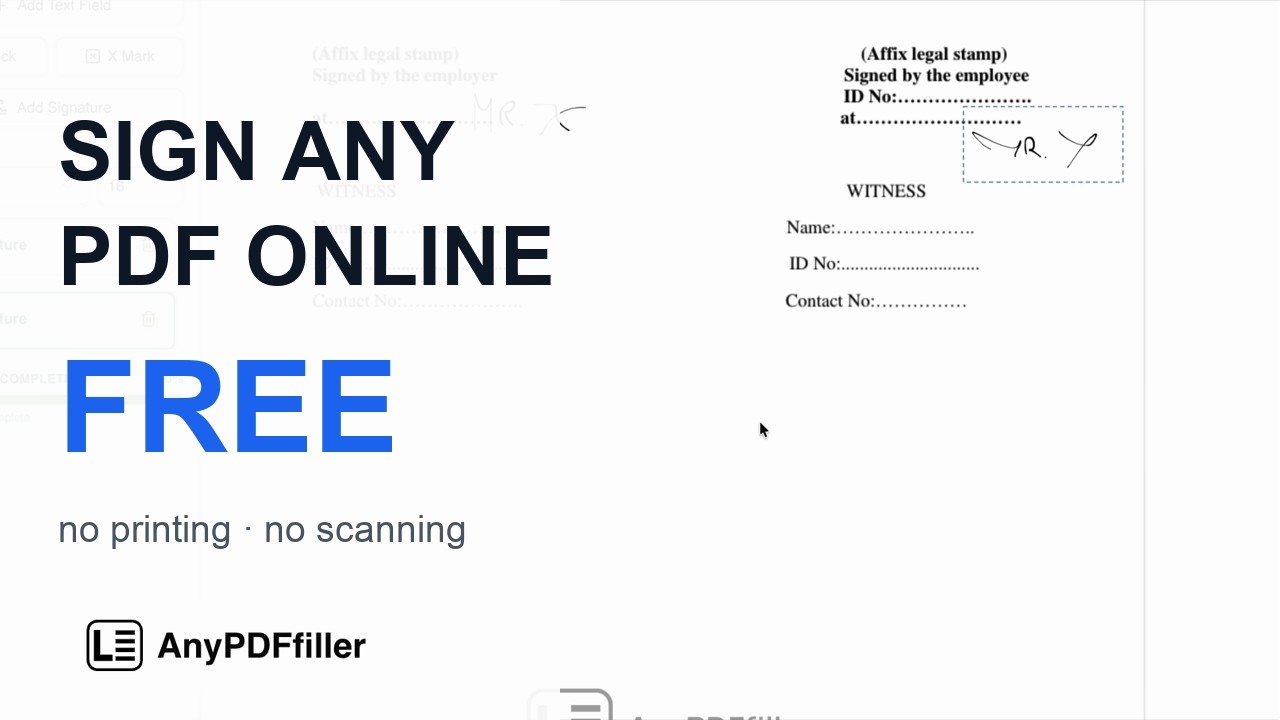
After you submit, move the cursor over the document and click where the signature should go. From there you can drag it onto the signature line and pull its edges to resize it. You stay in control of the size and position, so it lines up cleanly with the printed layout instead of floating over the text.
Step 4 — Add the date and initials
Many documents also need a date next to the signature, and some need your initials on every page. Drop a text box for the date, add initials where required, and place a checkmark or an X on any boxes that need one.
Step 5 — Download the signed PDF
When everything looks right, download the file. You get a standard PDF with your signature merged into the page, ready to email, upload to a portal, or keep for your records.
That is the whole process. No printer, no scanner, no pen.
How to sign a PDF without printing or scanning
The print-sign-scan routine exists only because people assume a signature has to be made on paper. It does not.
When you sign online, your signature is added as part of the document itself. Because it is merged into the page on download, the recipient sees a properly signed form, not a separate image pasted on top. To lock your signature and everything else you added into the page so it can’t be edited afterward, you can flatten the PDF. This is the same idea behind filling a form online instead of by hand — for the full walkthrough, see our guide on how to fill out a PDF form.
Skipping the printer and scanner also means no crooked scans, no wasted ink, and no waiting until you are near a machine. If you have been weighing this against the old method, our comparison of filling a PDF online vs printing breaks down the difference.
How to electronically sign a PDF
Adding your signature online is exactly what it means to electronically sign a PDF: instead of a wet-ink signature on paper, you place your signature directly onto the electronic file and download the signed copy. The steps are the ones you have already seen — draw your signature, then drop it on the signature line.
In law, an electronic signature is any mark you apply to a document to show intent to sign; a drawn signature is one form of it, and it is the form this tool creates. In the United States, electronic signatures have been legally recognized since the federal ESIGN Act (2000) and the state-level UETA, which is why signing a lease, an offer letter, or a consent form this way is accepted for most everyday agreements. Some documents — wills, certain notarized or court filings — can carry their own signing rules, so when a form spells out a specific method, follow it. This is not legal advice; check the requirements on the document itself if you are unsure.
Electronically sign vs. digitally sign — the difference
People search for both “electronically sign a PDF” and “digitally sign a PDF,” and they usually mean the same everyday task: getting a signature onto the file without paper. It is worth knowing the technical distinction:
- An electronic signature is the visible signature you place on the page. That is what this tool creates — a drawn signature — and it is what most contracts and forms ask for.
- A certificate-based digital signature is a separate, cryptographic technology that binds a signature to a verified digital certificate (often used inside corporate or government workflows). It is a different mechanism, and this tool does not issue certificates.
For the vast majority of documents you sign day to day — leases, consent forms, offer letters, tax and HR paperwork — a placed electronic signature is what is needed. If a form explicitly requires a certificate-based digital signature, use the specific service it names.
How to sign a PDF on your phone, iPhone, or Android
You do not need a computer to sign a document.
Because everything runs in the browser, you can sign a PDF on an iPhone, an Android phone, or a tablet with no app to install. On an iPhone, open the PDF from Mail, Messages, or Files in Safari; on Android, open it from Gmail or Drive in Chrome. Then draw your signature with a finger, place it on the line, and download the signed copy to send straight back.
Drawing with a fingertip on a touchscreen is often the most natural way to get a clean signature, and because there is no app to download, it works the same on any recent phone. This is genuinely useful when a document lands in your inbox and you are away from your desk.
Frequently asked questions
How do I sign a PDF for free?
Upload your PDF to an online filler, click Add Signature, and draw your signature in the box that opens. Click the page to place it, position it on the signature line, and download the signed file. You can do all of this for free, with no software to install; the free download carries a watermark.
Can I sign a PDF without printing it?
Yes. Signing online adds your signature directly to the file, so there is no need to print, sign by hand, and scan. You download a finished PDF with the signature already merged into the page.
Do I need an account to sign a PDF?
No. You can upload a document, add a signature, and download the signed file without creating an account. The free download carries a watermark; removing it is what a paid plan is for.
How do I electronically sign a PDF?
Upload the PDF, click Add Signature, draw your signature, and drop it on the signature line. Downloading the file gives you an electronically signed PDF. “Electronically sign” simply means applying your signature to the digital file instead of signing a printed page.
Is an electronic signature legally valid?
For most everyday documents in the United States, yes — electronic signatures have been recognized under the federal ESIGN Act and state UETA laws for over two decades, which is why leases, offer letters, and consent forms are routinely signed this way. Some documents set their own signing rules, so follow any specific method a form requires. This is general information, not legal advice.
What is the difference between electronically and digitally signing a PDF?
In everyday use they mean the same thing: placing your signature on the file. Technically, an electronic signature is the visible signature you put on the page, while a certificate-based digital signature is a separate cryptographic technology. This tool places electronic signatures, which is what most contracts and forms ask for.
How do I add a signature on my phone or iPhone?
Open the PDF in your mobile browser — Safari on iPhone, Chrome on Android — add a signature, and draw it with your finger. Drag it onto the signature line, resize it to fit, and download the signed file. There is no app to install.
Will my signed PDF look the same for everyone?
Yes. Your signature is flattened into the page when you download, so it appears the same way in every PDF viewer rather than showing up in one app and disappearing in another.
Ready to sign your PDF?
You now know how to sign a PDF online for free — draw your signature in the browser, drop it on the line, and download the file, all without printing or scanning.
The fastest way to see it work is to try it on your own document.
While you are at it, you can also annotate the PDF with notes and checkmarks before you sign.
Ready to start filling your PDFs?
Fill out PDF documents like a pro in minutes - no premium account needed.