
How to Flatten a PDF Online (So Your Entries Can't Be Edited)
Flatten a PDF online for free so your typed answers and signature can't be edited. Lock your finished document in your browser — no software needed.
You filled out a PDF, and now you need to send it.
Maybe it is a contract, a job application, a W-9, or a consent form. The information is all in there — but the fields are still live. Anyone who opens the file can click into them and change a number, a name, or a date.
That is exactly what flattening fixes. This guide shows you how to flatten a PDF online for free, right in your browser, so everything you filled in is locked into the page and can no longer be edited.
What it means to flatten a PDF
Flattening a PDF means merging everything you added — text, checkmarks, signatures, dates — directly into the page so it becomes part of the document itself instead of a separate, editable layer.
Before you flatten, a filled PDF has two layers:
- The original page underneath
- The interactive form fields on top, which are still clickable and editable
After you flatten, the values you typed are baked into the page as plain content rather than sitting in a live field. Nobody can click into them to edit, clear, or accidentally retype what you entered.
One caveat worth knowing: if your original PDF came with its own interactive fields, those field boxes can still be present in the file you download. What changes is that your answers are not stored in them — they are drawn onto the page — so what you filled in cannot be altered.
In short: a flattened PDF looks identical, but it is final.
Why you would want to flatten a PDF
There are a few very practical reasons to flatten before you send a document.
- Stop accidental edits. Live form fields are easy to change by mistake — one stray click and a date or total is gone. Flattening removes that risk.
- Lock in a signature. A signature sitting in an editable field can be moved or deleted. Flattened, it stays exactly where you placed it.
- Look consistent everywhere. Some PDF viewers render form fields differently, or hide them entirely. A flattened file looks the same in every viewer, on every device.
- Keep your answers out of the field data. Your entries are written onto the page rather than stored as field values, so there is no typed value sitting in a form field for a reader to pull out.
- Look finished to the recipient. What arrives is a document with the answers printed on it, not a half-filled form someone is invited to retype.
A note on that last point, because it is where flatten tools differ. Some strip the original form layer out of the file entirely. This one does not: your entries are baked in, but if the source PDF came with its own field boxes, those boxes are still there, empty, underneath. If a portal specifically rejects files that contain any form fields, that is a case this method does not solve.
If you are sending a finished document to someone who only needs to read or print it, flattening is almost always the right final step.
How to flatten a PDF online: step by step
Here is the full process. It works in any modern browser, on a laptop, tablet, or phone — and you do not need to install anything.
Step 1 — Upload your PDF
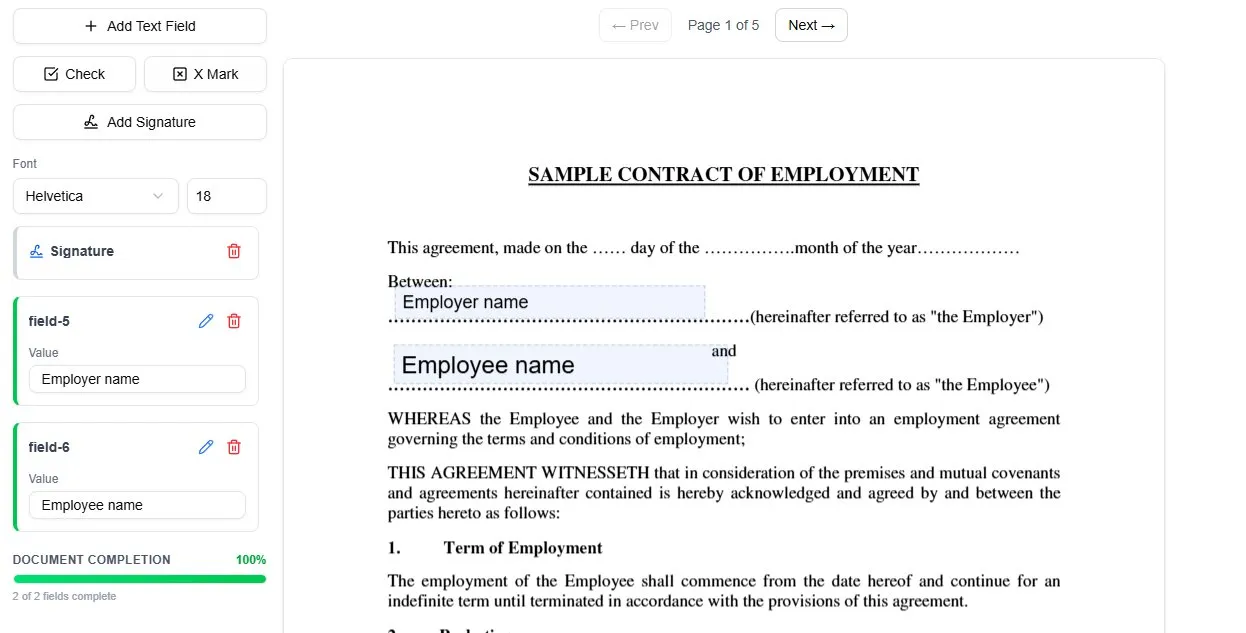
Open the filler in your browser and upload the document you want to finalize. It opens on screen right away. There is nothing to install, and you do not need an account to get started.
Step 2 — Fill in or check your fields
If the form is not filled yet, add your text, checkmarks, dates, and signature now. If it is already complete, give it one last look to make sure every field reads exactly the way you want it — because once you flatten, those values are locked. For a full walkthrough of this part, see our guide on how to fill out a PDF form.
Step 3 — Add your signature if needed
If the document needs to be signed, click Add Signature, draw it in the box that opens, and click the page to place it on the signature line. Our guide on how to sign a PDF covers this in detail.
Step 4 — Download the finished file
When everything looks right, download the document. This is the step that flattens it: your text, marks, and signature are merged straight into the page as final content, so they can no longer be clicked into or edited.
Step 5 — Confirm it is flattened
Open the downloaded file in any PDF reader and try to edit what you typed — click into it, select it, delete a character. Your answer will not budge, because it is page content now rather than a value in a field.
One thing to expect: if the original PDF shipped with its own interactive boxes, those boxes are still in the file, sitting under your answers. You may still land in one when you click. That is the empty original field, not your entry — whatever you typed stays put underneath.
That is the whole process. No extra software, no command line, no print-and-rescan.
Flatten on download — the easy way
The simplest way to flatten a PDF is to let it happen automatically when you download.
When you fill a form and download the result, your entries are written into the page as final content rather than left as live fields. The file you get back is already flat. You do not have to find a separate “flatten” button or run a conversion — finishing the document and downloading it does the job.
This is the same mechanism behind signing online: when you place a signature and download, it is flattened into the page so it appears the same in every viewer. If you have ever wondered why a signed PDF cannot be dragged around after the fact, that is flattening at work.
Flattening vs. password-protecting a PDF
These two often get confused, so it is worth being clear.
- Flattening removes the ability to edit what you filled in, by merging it into the page. The file stays open to read, print, and copy — your answers just are not editable anymore.
- Password-protecting controls who can open or change a file, but it does not merge the fields. A protected PDF can still have live, editable form fields once it is unlocked.
They solve different problems. If your goal is simply “make sure nobody changes what I filled in,” flattening is the lighter, friendlier choice — there is no password for your recipient to fumble with.
How to flatten a PDF on your phone
You do not need a computer to flatten a document.
Because everything runs in the browser, you can open a PDF on a phone or tablet, fill or check the fields, sign with your finger, and download the finished, flattened copy straight to your device. There is no app to install and no signup to get started.
This is genuinely handy when a form lands in your inbox and you need to send back a clean, locked version before you are back at your desk. It also works on documents that started life as a scan — our guide on filling a scanned PDF walks through that case, and the download step flattens it just the same.
Frequently asked questions
How do I flatten a PDF for free?
Upload your PDF to an online filler, fill in or check the fields, add a signature if needed, and download the file. The download merges everything you added into the page as final content, so your entries are flattened. It is free, with no software to install.
What does flattening a PDF actually do?
It merges your filled-in text, checkmarks, dates, and signature into the page itself as plain content, so those values can no longer be clicked into or edited. The document looks the same but becomes final.
Will a flattened PDF still be readable?
Yes. Flattening only fixes your entries into the page. The document opens, reads, prints, and shares exactly as before — your answers just cannot be edited anymore.
Can a flattened PDF be edited again?
Not the parts you filled in. Once your entries are merged into the page, there is nothing to click into. If you need to make a change, fill out a fresh copy of the original document and flatten that one instead.
Do I need an account to flatten a PDF?
No. You can upload a document, fill it, and download a flattened copy without creating an account. The free download carries a watermark; a clean copy is the paid part.
Does flattening lock my signature in place?
Yes. When you download, your signature is flattened into the page, so it stays exactly where you placed it and appears the same in every PDF viewer instead of sitting in a movable field.
Ready to flatten your PDF?
You now know how to flatten a PDF online for free — filling the form, signing it, and downloading a finished file with your entries locked into the page so nothing can be changed by accident.
The fastest way to see it work is to try it on your own document. Fill it in, download it, and watch your entries turn into final, uneditable content.
Ready to start filling your PDFs?
Fill out PDF documents like a pro in minutes - no premium account needed.